Technova PointageStep-by-step test guide

Kiosk-mode time clock. Your teams scan a badge or enter a personal code; each punch is recorded on the PC and then sent to Technova, even after a network outage.

Estimated time : 20 minutes

Download the app

Technova Pointage

Time clock terminal

Kiosk-mode time clock. Your teams scan a badge or enter a personal code; each punch is recorded on the PC and then sent to Technova, even after a network outage.

Download for Windows

Coming soon

Windows SmartScreen will show a warning. See what to do

Requirements

  • Windows 10 or 11, 64-bit.
  • An Technova account allowed to manage attendance terminals (the demo account for this test).
  • Optional: a badge reader in "keyboard mode". Without a reader, the personal code is enough.
Demo details

Server address
https://technova.fr-host.fr
Database
pointage
Demo account
admin
Demo password
admin
Demo badge (Mehdi Lahlou)
EMP0001
Demo personal code (Mehdi Lahlou)
1001
The data is fictitious and the database is reset regularly. Do not enter any real data.

What the demo database contains

The demo database holds fictitious employees with a badge and a personal code, plus a fictitious attendance history. A punch you make stays visible until the next reset.

The test, step by step

Menu, tab and button names are shown as they appear in French in the app and in Technova.

  1. 1Step 1

    Install the app

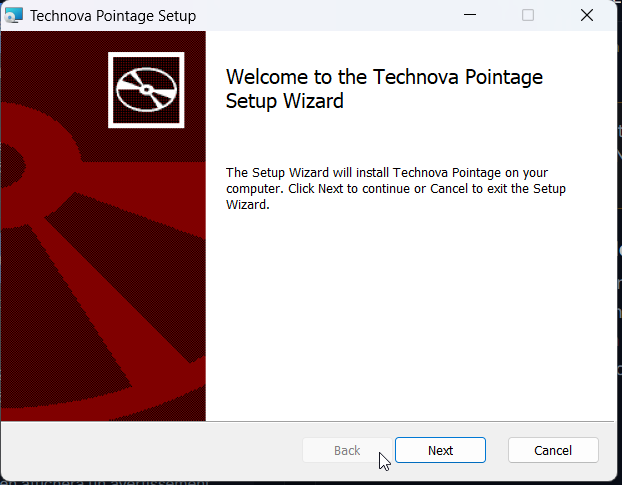
    Download the MSI installer and double-click it. If Windows shows "Windows protected your PC", click "More info" then "Run anyway". In the setup wizard ("Technova Pointage Setup"), click "Next" and follow the screens. When the installation ends, start "Technova Pointage" from the Start menu.

    Technova Pointage Setup wizard, welcome screen
  2. 2Step 2

    Create the terminal in Technova

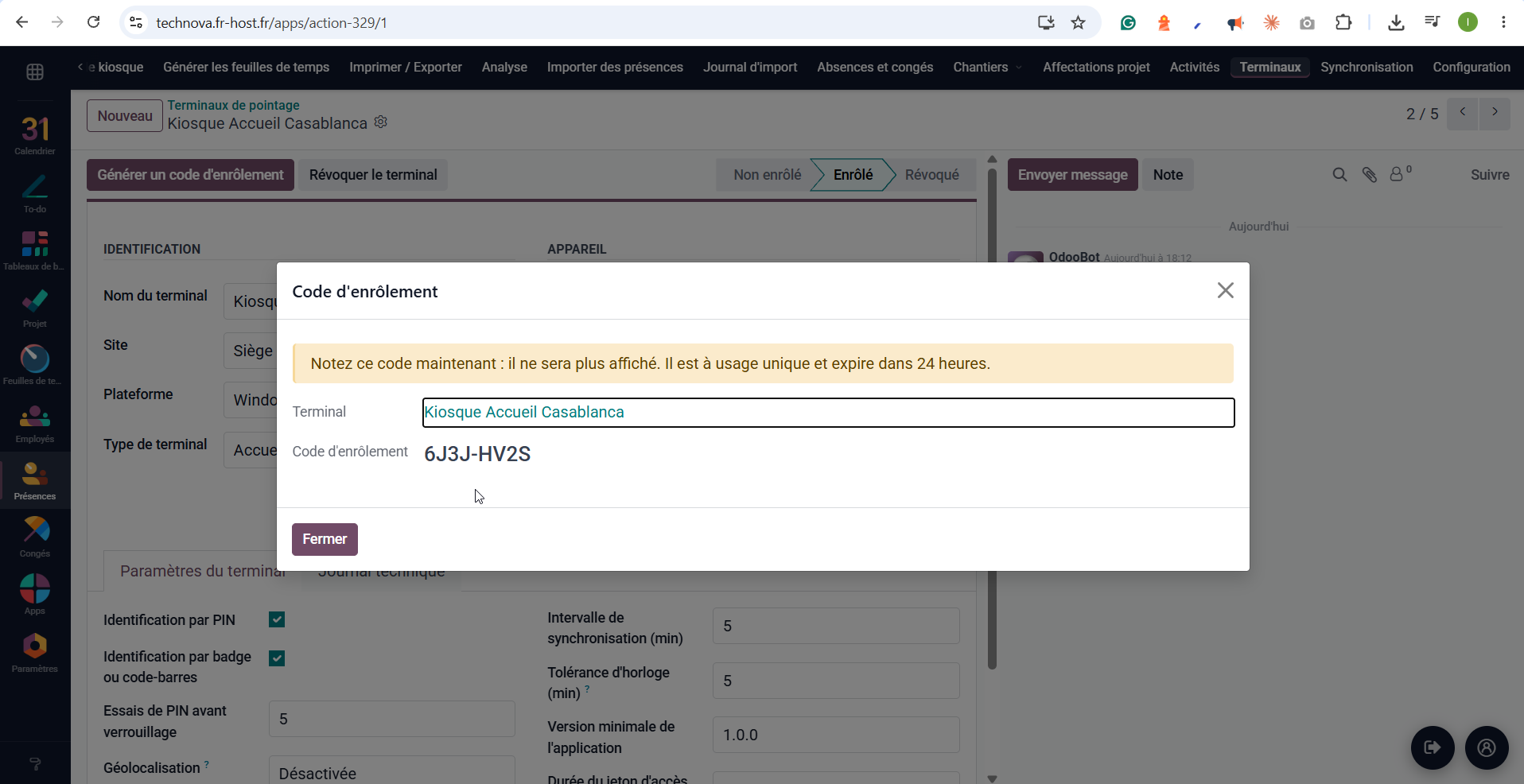
    Sign in to Technova (⁦https://technova.fr-host.fr⁩, database ⁦pointage⁩, account ⁦admin⁩, password ⁦admin⁩). Open Présences › Terminaux and create a terminal with "Nouveau": "Windows" platform and a suitable terminal type (for example "Accueil" for a reception kiosk). Save, then click "Générer un code d'enrôlement". Write the code down: it is not shown again, is single-use and valid for 24 hours.

    Time clock terminal in Technova with the Code d'enrôlement window
  3. 3Step 3

    Enrol the PC

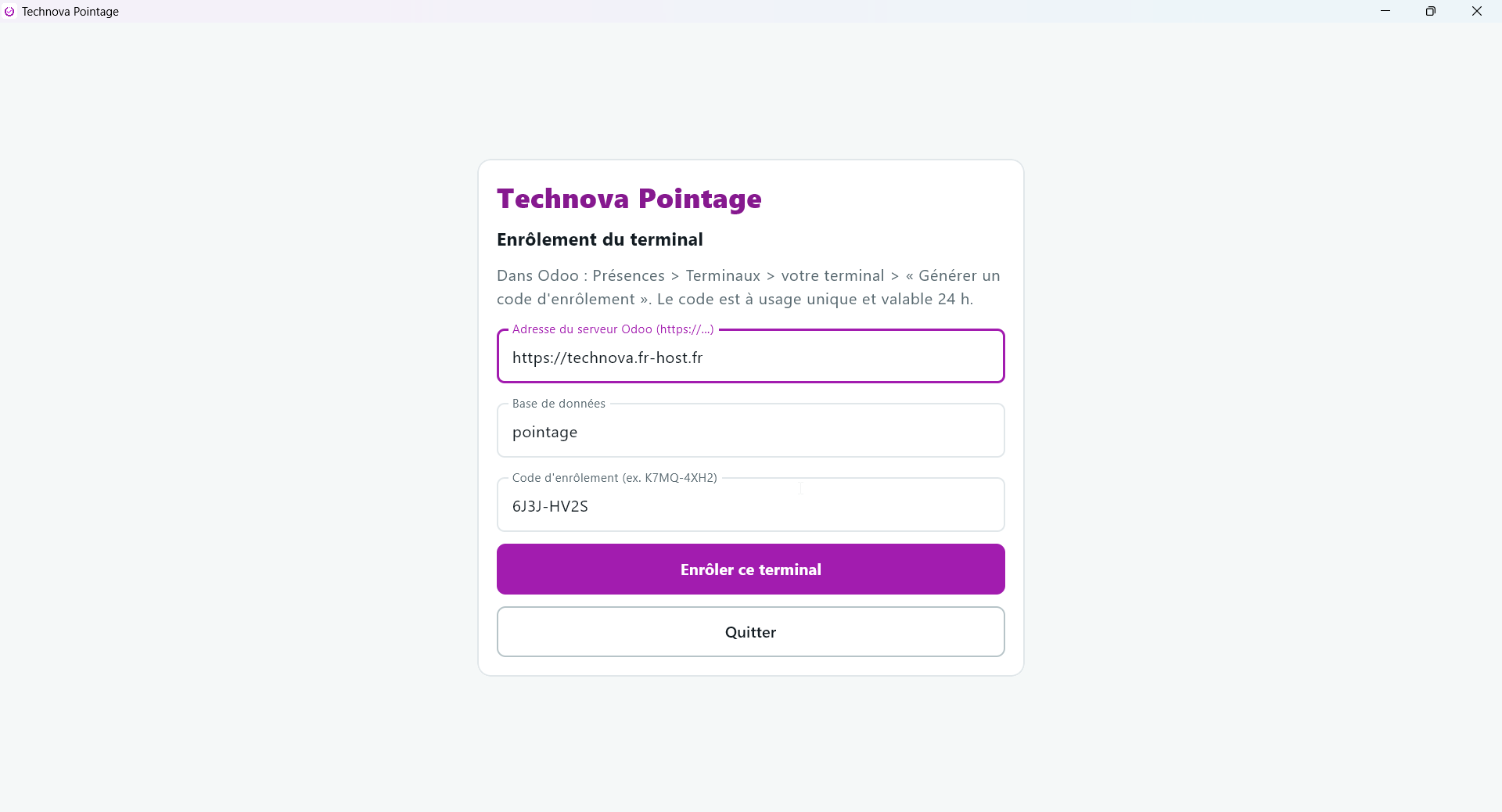
    On first launch, choose an administrator password for this PC if the app asks for one. The "Enrôlement du terminal" screen appears: enter the server address (⁦https://technova.fr-host.fr⁩), the database (⁦pointage⁩) and the enrolment code, then click "Enrôler ce terminal". The employee list is downloaded.

    Technova Pointage Enrôlement du terminal screen with address, database and code filled in
  4. 4Step 4

    Punch in

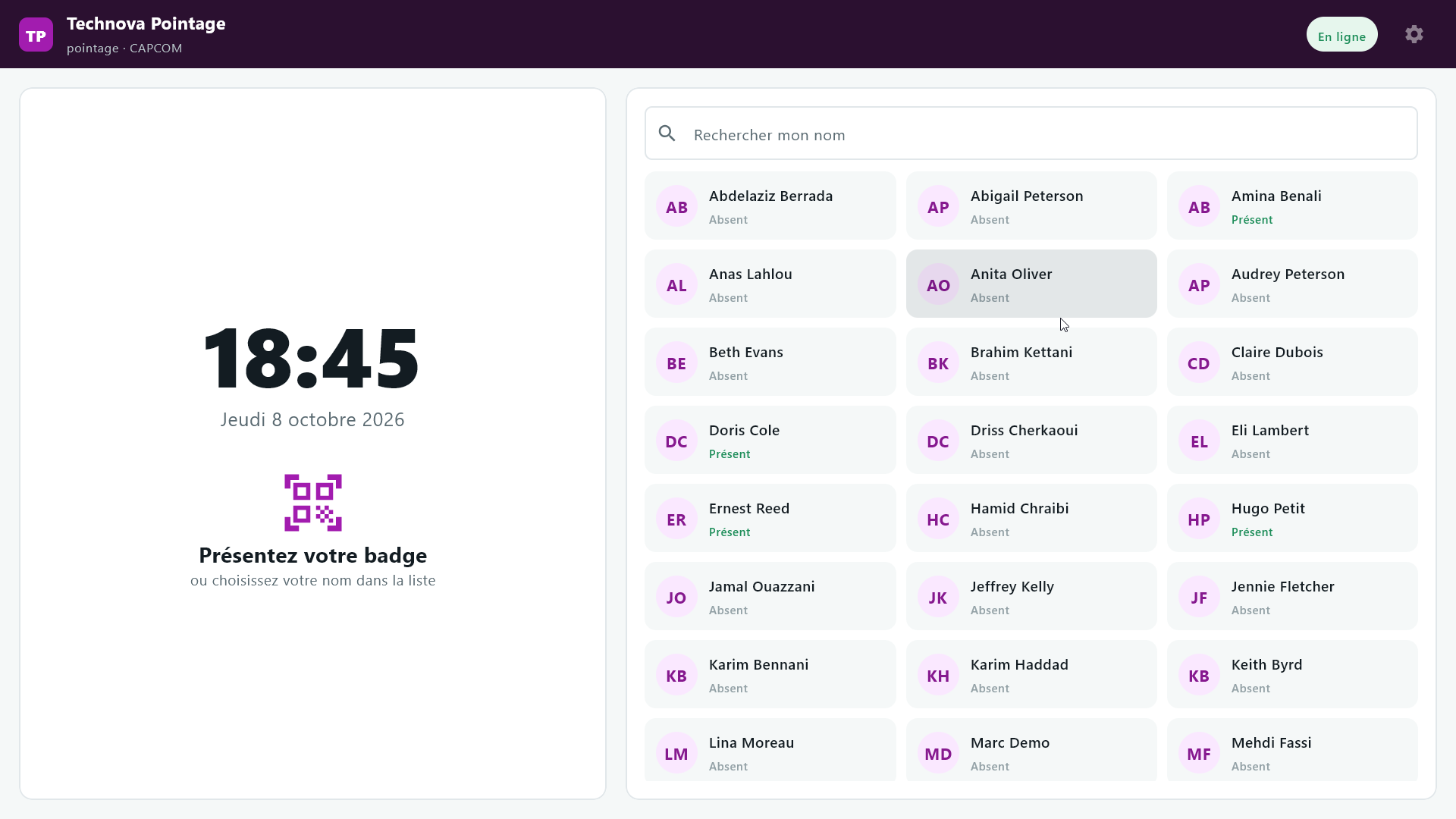
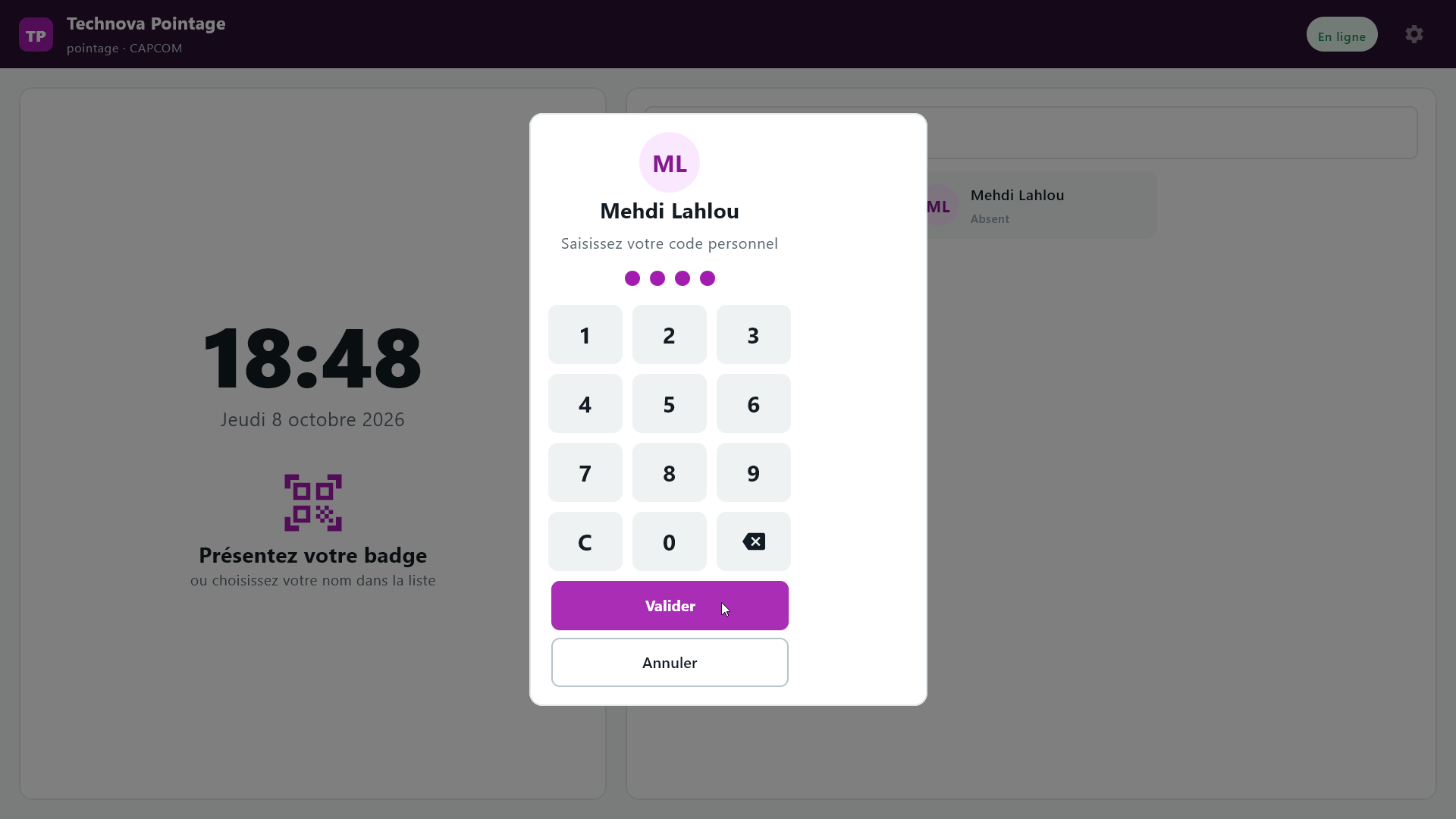
    The kiosk shows the time, "Présentez votre badge ou choisissez votre nom dans la liste" and the list of employees with their status (Présent or Absent). With a personal code: click your name (for example Mehdi Lahlou), enter the code (⁦1001⁩) on the keypad, then click "Valider". With a badge: present it to the reader or, without a reader, type ⁦EMP0001⁩ then Enter, quickly. The kiosk records the punch.

    Technova Pointage kiosk home screen with the employee listKeypad to enter an employee's personal code
  5. 5Step 5

    Check the attendance in Technova

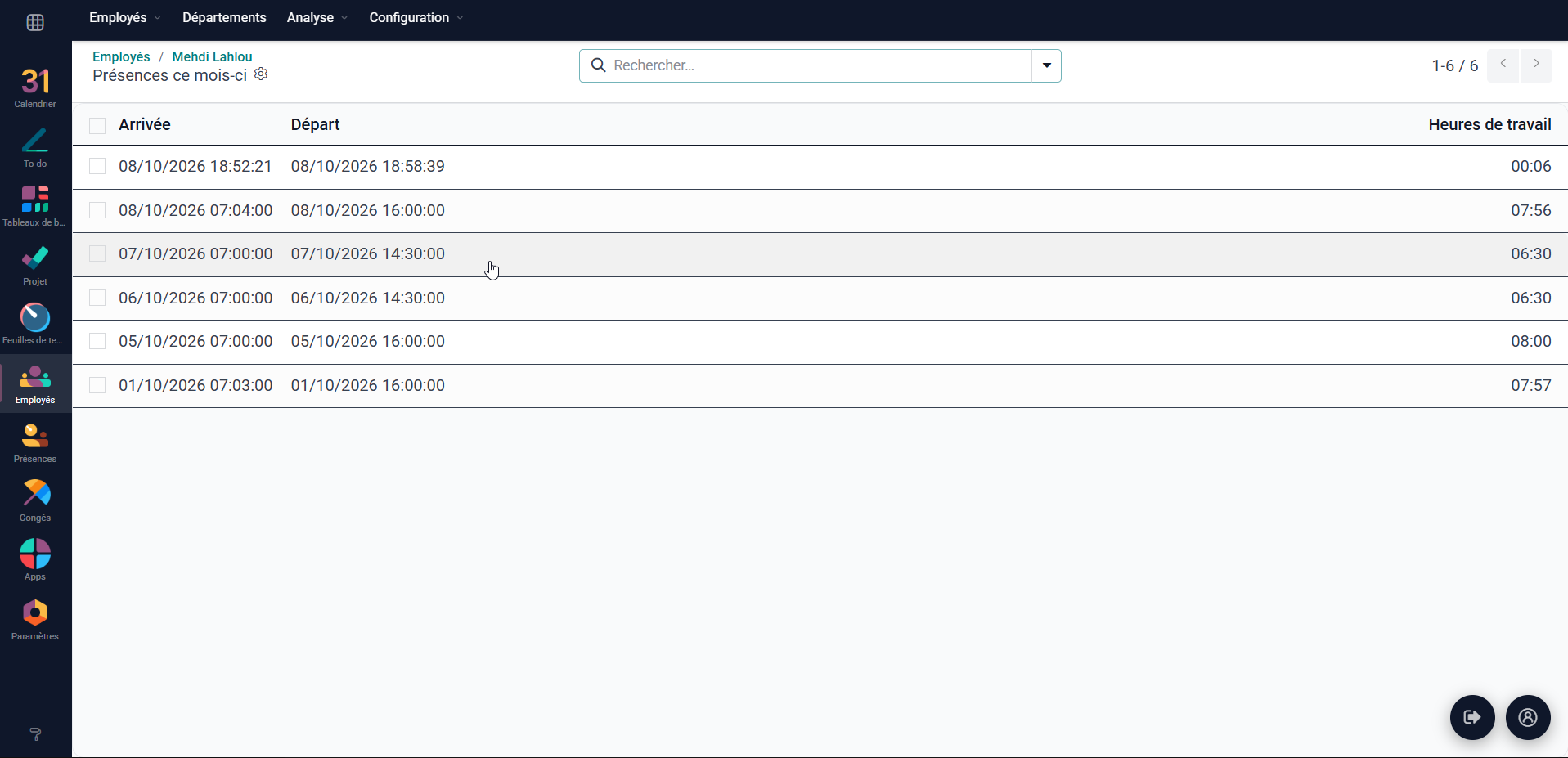
    In Technova, open Employés, then the record of the employee who just punched (here Mehdi Lahlou) and the "Présences ce mois-ci" list: the punch appears with its arrival time, departure time and worked hours.

    An employee's "Présences ce mois-ci" list in Technova showing the kiosk punch
  6. 6Step 6

    Try offline mode

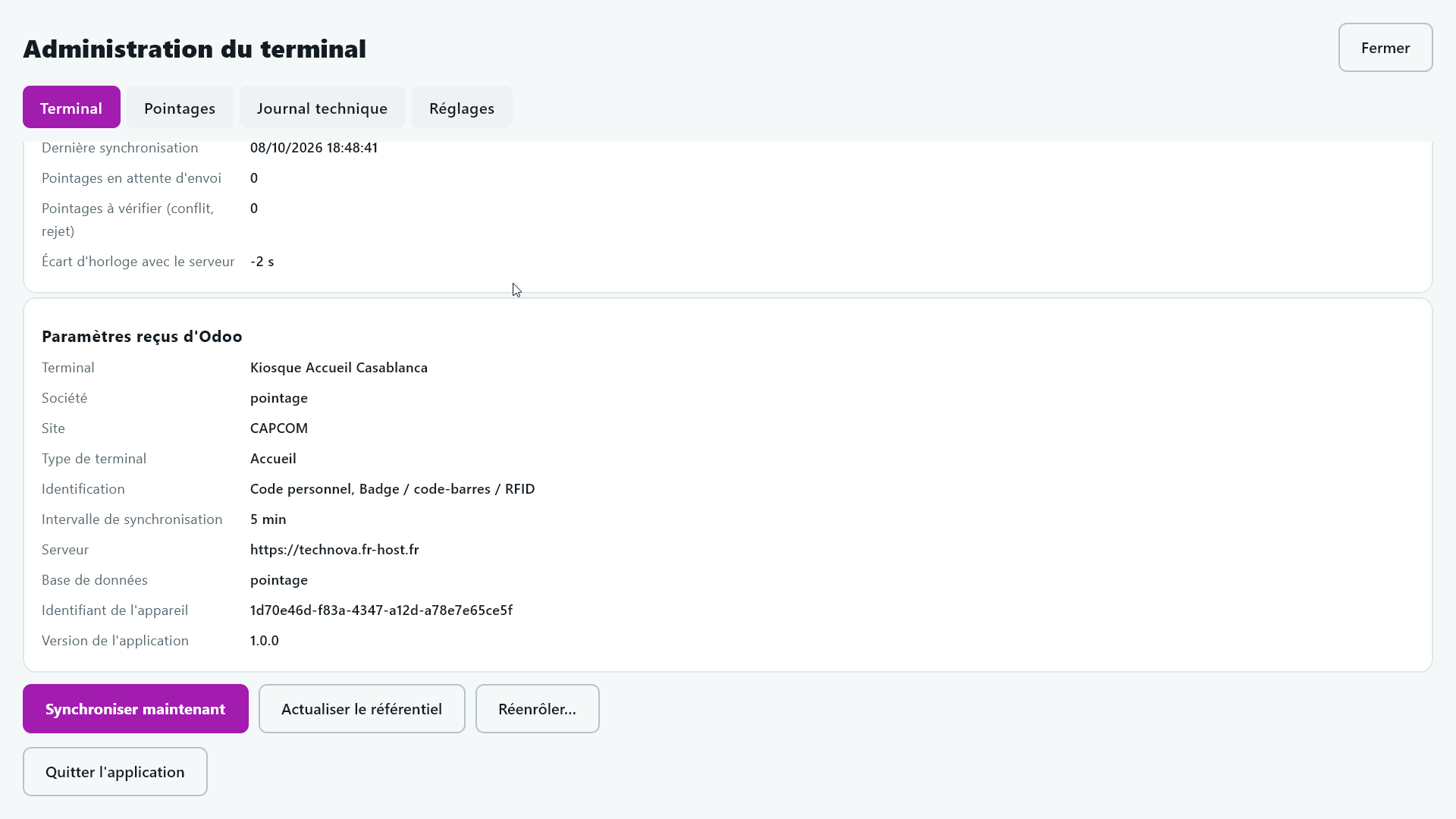
    Cut the PC's network and make a new punch: it is accepted and kept on the PC. Restore the network: the punch is sent automatically. To follow the upload, open the terminal administration (⚙ icon at the top right, or Ctrl + Shift + A): the "Terminal" tab shows the last synchronisation, the "Pointages en attente d'envoi" and the "Pointages à vérifier (conflit, rejet)", with a "Synchroniser maintenant" button. The "Pointages" tab lists each punch and its status. Then find the punch in Employés › the employee's record › Présences ce mois-ci.

    Terminal administration: last synchronisation and pending punches

If it does not work

  • The terminal no longer synchronises

    A terminal revoked in Technova stops synchronising and blocks new punches. Check its state in Présences › Terminaux.

  • Too many personal code attempts

    After several wrong attempts, the app locks. Use a badge instead.

  • The enrolment code is rejected

    A code is single-use and valid for 24 hours. If it has expired or was already used, go back to the terminal in Technova and click "Générer un code d'enrôlement" again.

  • The server refuses the connection

    Outside a local demo, the address must start with https://: the API does not accept HTTP in production. Also check the address for typos.

  • The database is not recognised

    Enter the database name exactly as shown in the "Demo details" section above. A mistyped address or database gives a connection error.

  • Windows blocks the installation

    The installers are not digitally signed. Click "More info" then "Run anyway", after comparing the SHA-256 checksum.