Technova PharmaStep-by-step test guide

Desktop app for the pharmacy counter and till. It connects to your Technova workspace and keeps recording tickets when the network drops.

Estimated time : 15 minutes

Download the app

Technova Pharma

Pharmacy till

Desktop app for the pharmacy counter and till. It connects to your Technova workspace and keeps recording tickets when the network drops.

Version
0.1.372
Updated on
October 7, 2026
Download MSI

Technova Pharma-0.1.372.msi · 127.5 MB

SHA-256 checksum

144c555bc138741700840df95fc822b4bceea52a766050536d848ca9502545de
Download EXE

Technova Pharma-0.1.372.exe · 128.1 MB

SHA-256 checksum

fd26411eae3f5eb1555848024924ad1a411f89c63fd546818452e433ce21ab4c
Windows SmartScreen will show a warning. See what to do

Requirements

  • Windows 10 or 11, 64-bit.
  • The Technova server address, the database name, a login and a password (the demo ones for this test).
Demo details

Server address
https://technova.fr-host.fr
Database
pharmacie
Demo account
admin
Demo password
admin
The data is fictitious and the database is reset regularly. Do not enter any real data.

What the demo database contains

The demo database holds fictitious data: demo products and points of sale. The tickets you create stay visible until the next reset.

The test, step by step

Menu, tab and button names are shown as they appear in French in the app and in Technova.

  1. 1Step 1

    Install the app

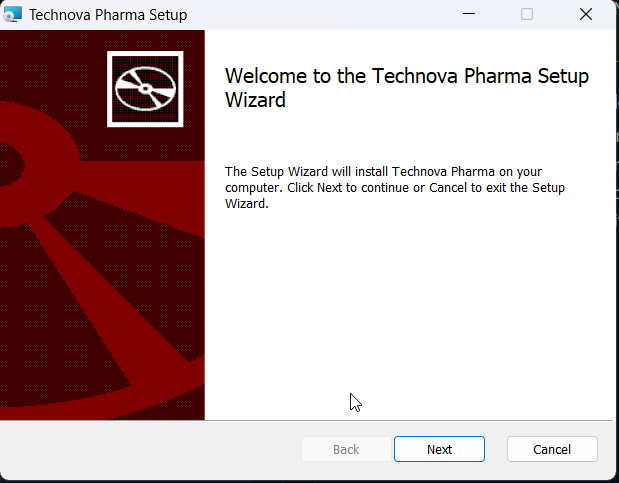
    Download the MSI or EXE file and double-click it. If Windows shows "Windows protected your PC", click "More info" then "Run anyway". In the setup wizard ("Technova Pharma Setup"), click "Next" and follow the screens. When the installation ends, start "Technova Pharma" from the Start menu.

    Technova Pharma Setup wizard, welcome screen
  2. 2Step 2

    Set the server

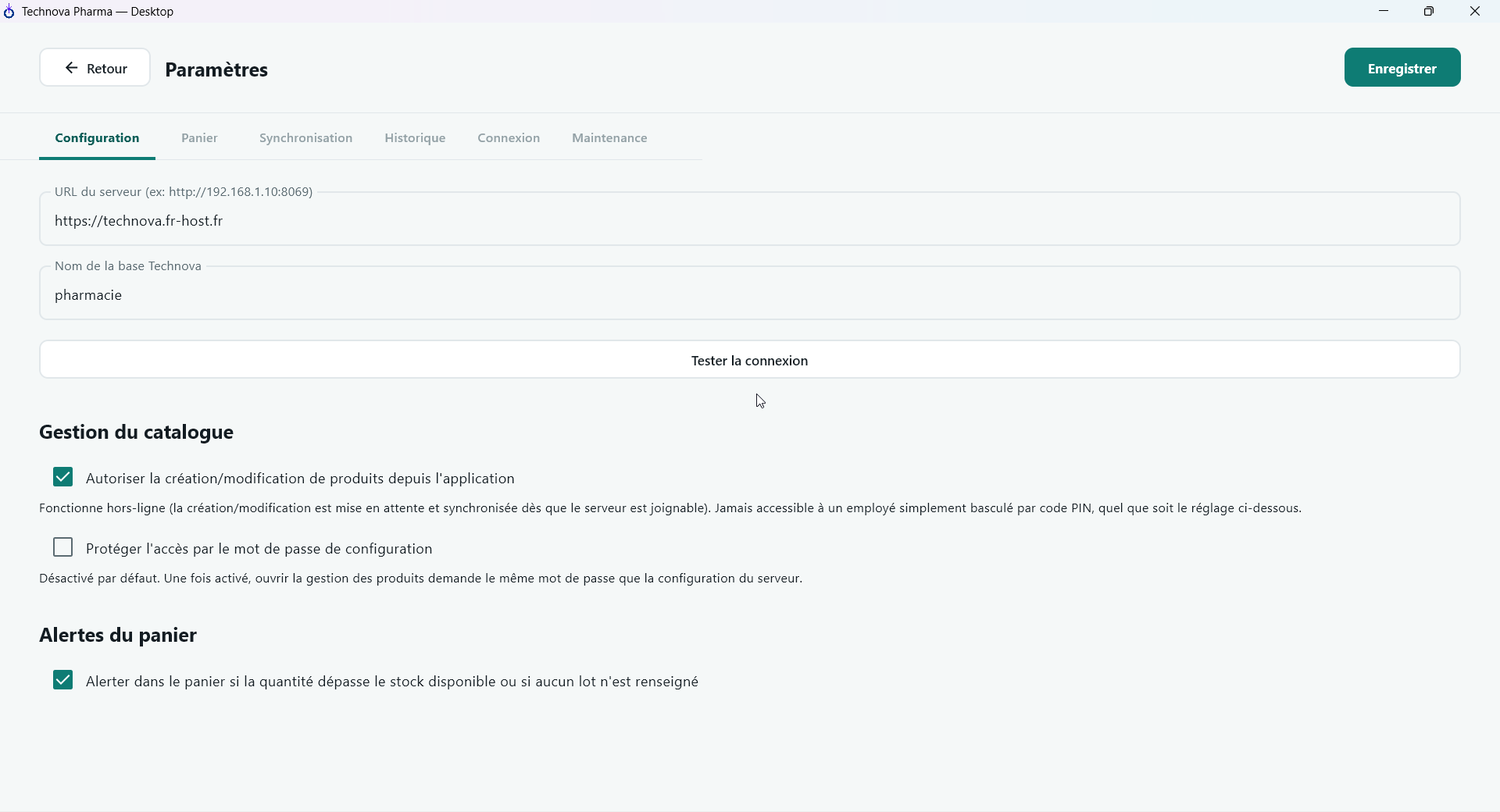
    On the sign-in screen, click the settings icon at the top right ("Configurer le serveur"). In the "Configuration" tab of the "Paramètres" page, enter the "URL du serveur" (⁦https://technova.fr-host.fr⁩) and the "Nom de la base Technova" (⁦pharmacie⁩), then click "Tester la connexion". The "Connexion OK" message shows how many points of sale were found. Click "Enregistrer", then "Retour".

    Technova Pharma settings page with the server URL and database name
  3. 3Step 3

    Sign in

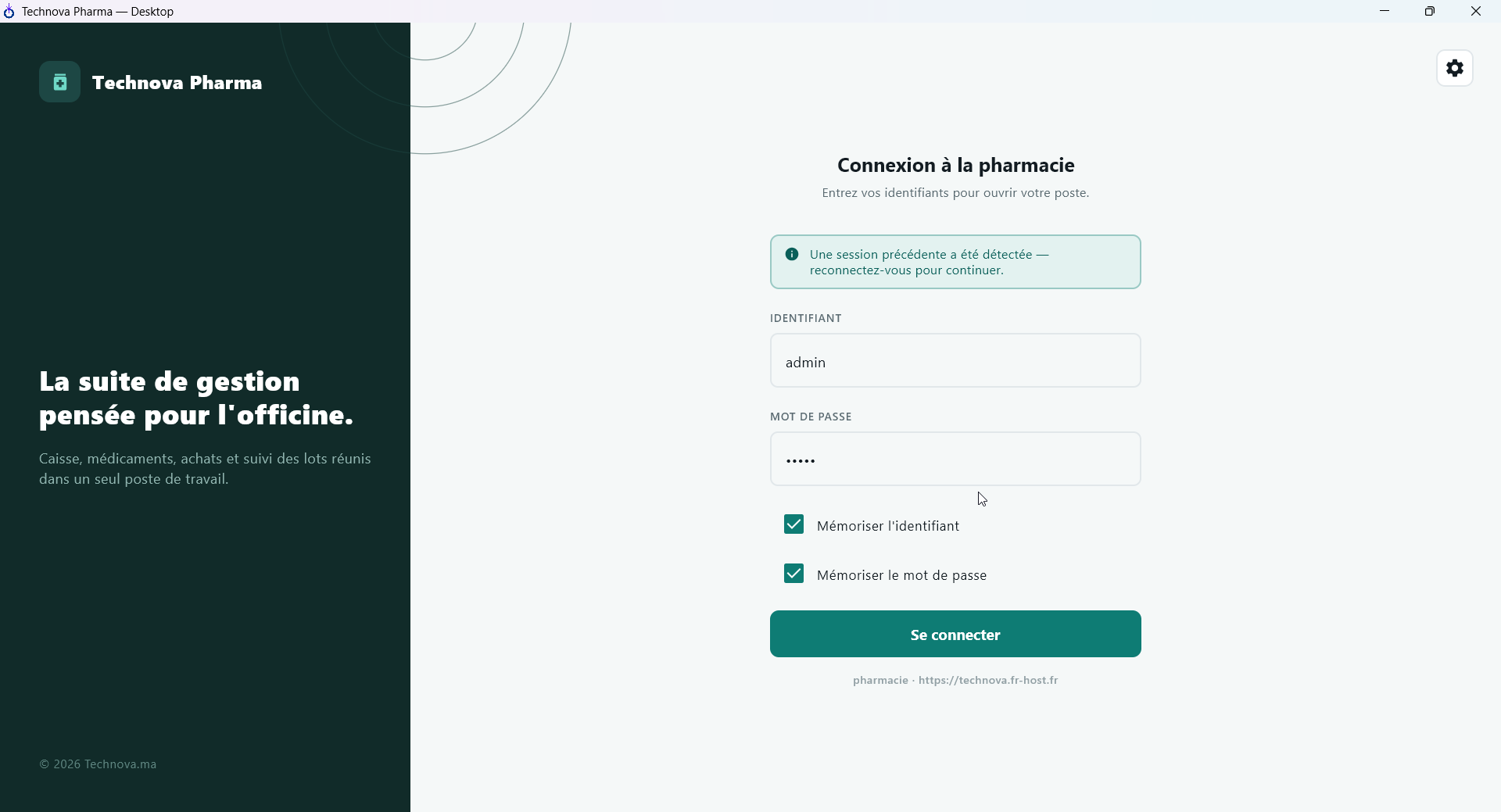
    Go back to the "Connexion à la pharmacie" screen. Enter the login (⁦admin⁩) and the password (⁦admin⁩), then click "Se connecter". The database and the server address are shown under the button.

    Technova Pharma pharmacy sign-in screen
  4. 4Step 4

    Check out a sale

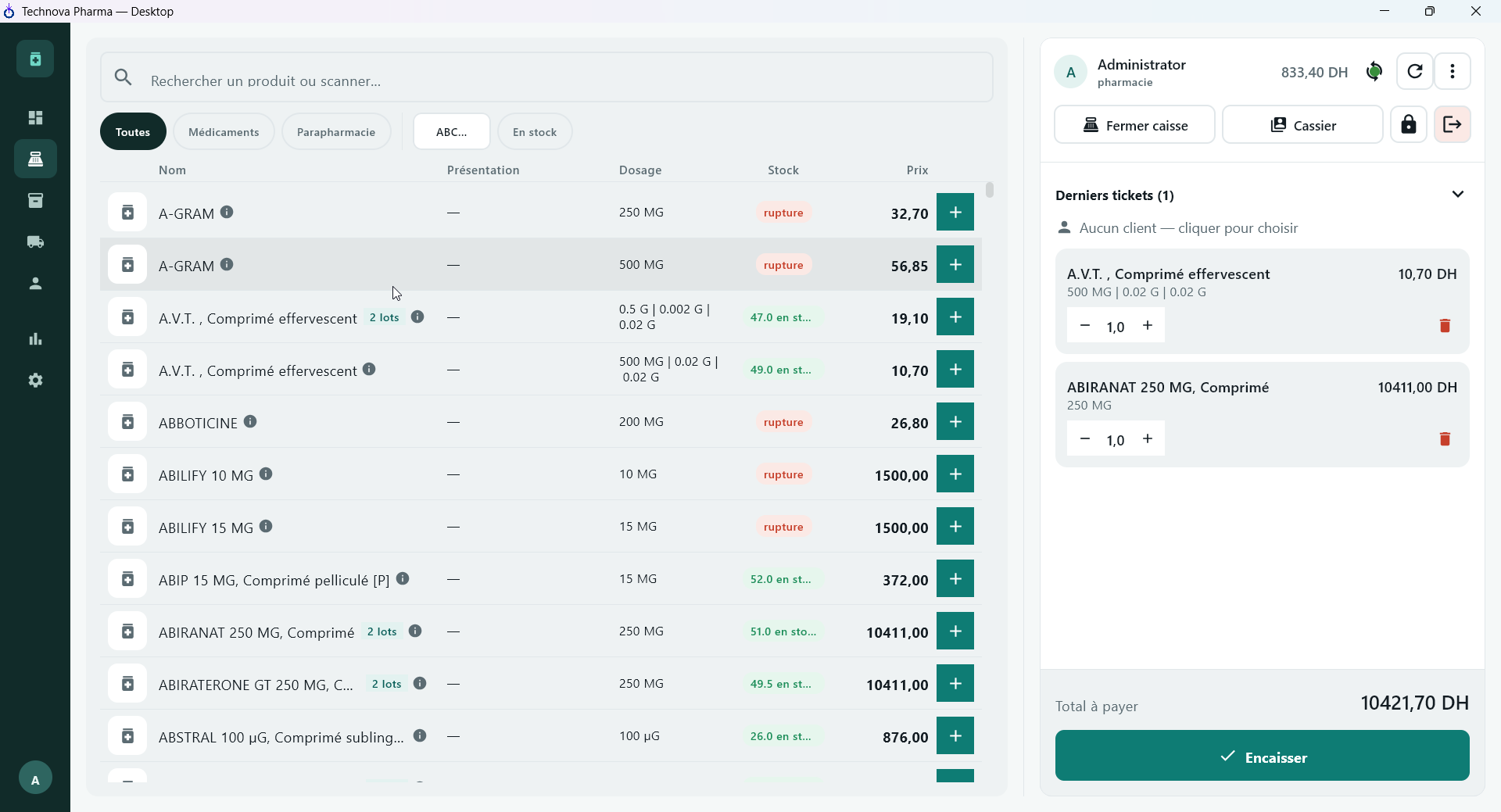
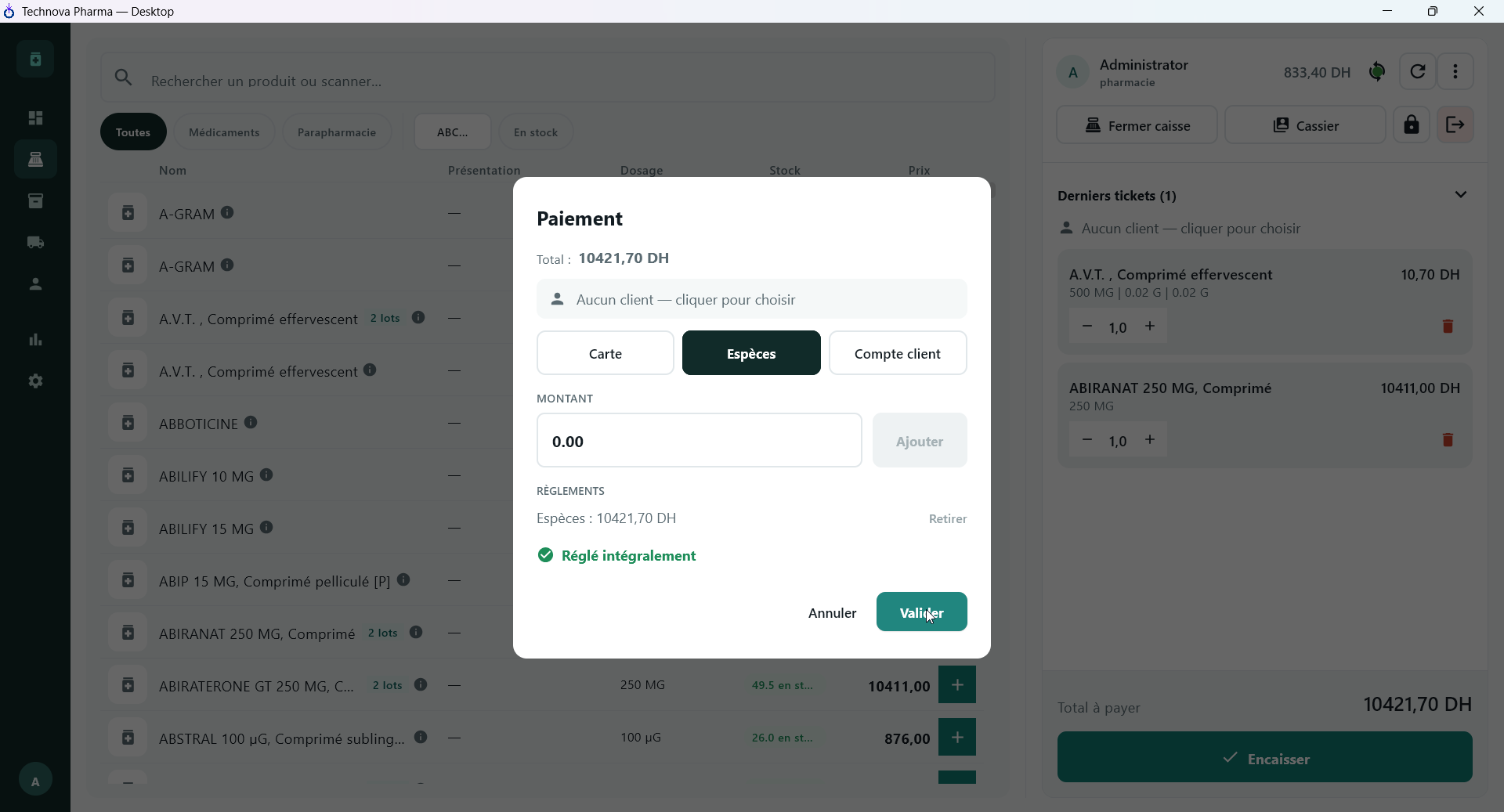
    In the list, click a product's "+" button to add it to the cart; adjust the quantity with "−" and "+". Then click "Encaisser": the "Paiement" window opens. Pick the method (Carte, Espèces or Compte client), check the amount, then click "Valider" once "Réglé intégralement" is shown.

    Cart with two products and the Encaisser button in Technova PharmaPaiement window with Espèces selected and Réglé intégralement shown
  5. 5Step 5

    Check the order in Technova

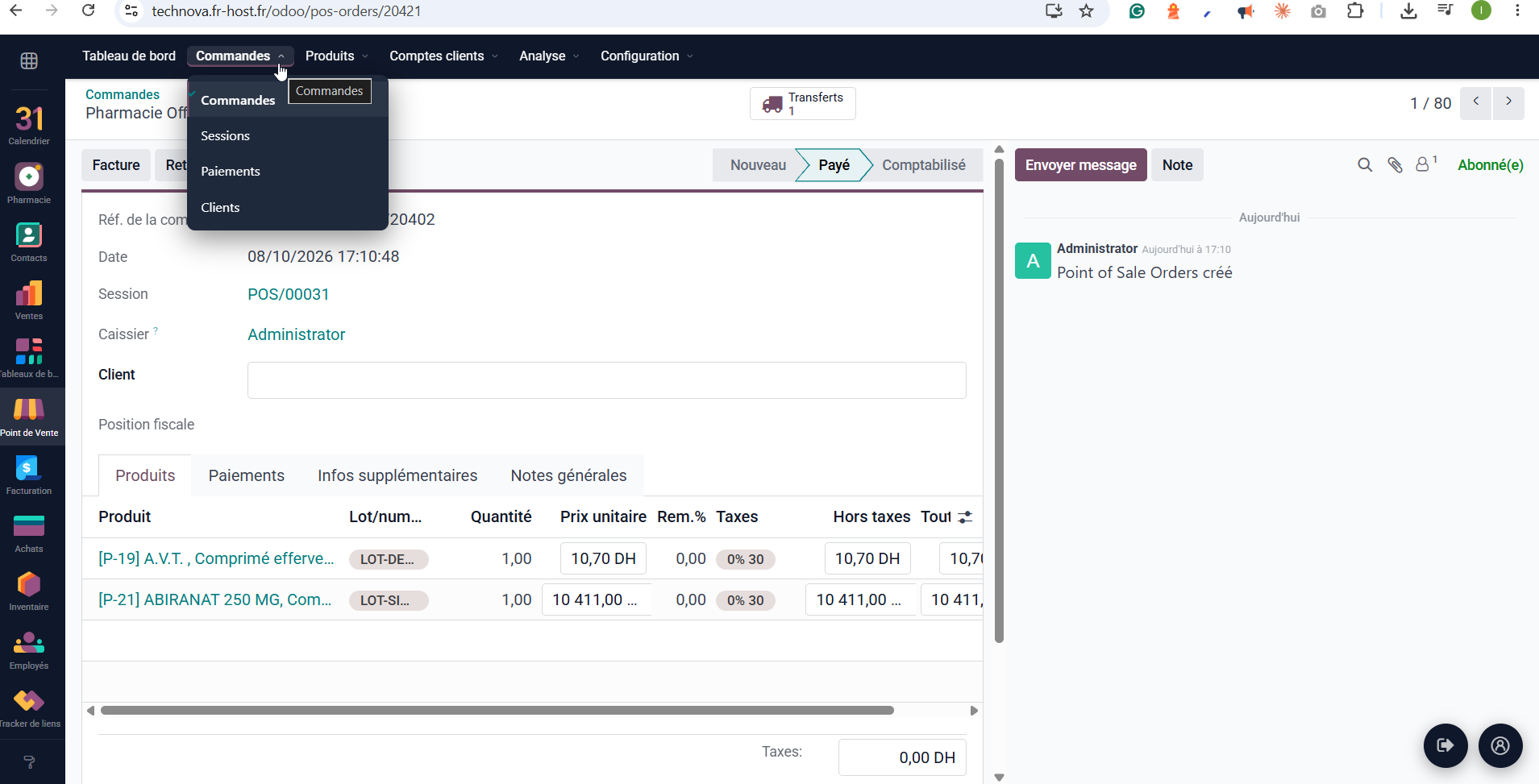
    In Technova, open Point de Vente › Commandes › Commandes: the sale you just rang up appears, in the "Payé" state, with its products, lots and cashier.

    Point of Sale order in Technova created by Technova Pharma
  6. 6Step 6

    Try offline mode

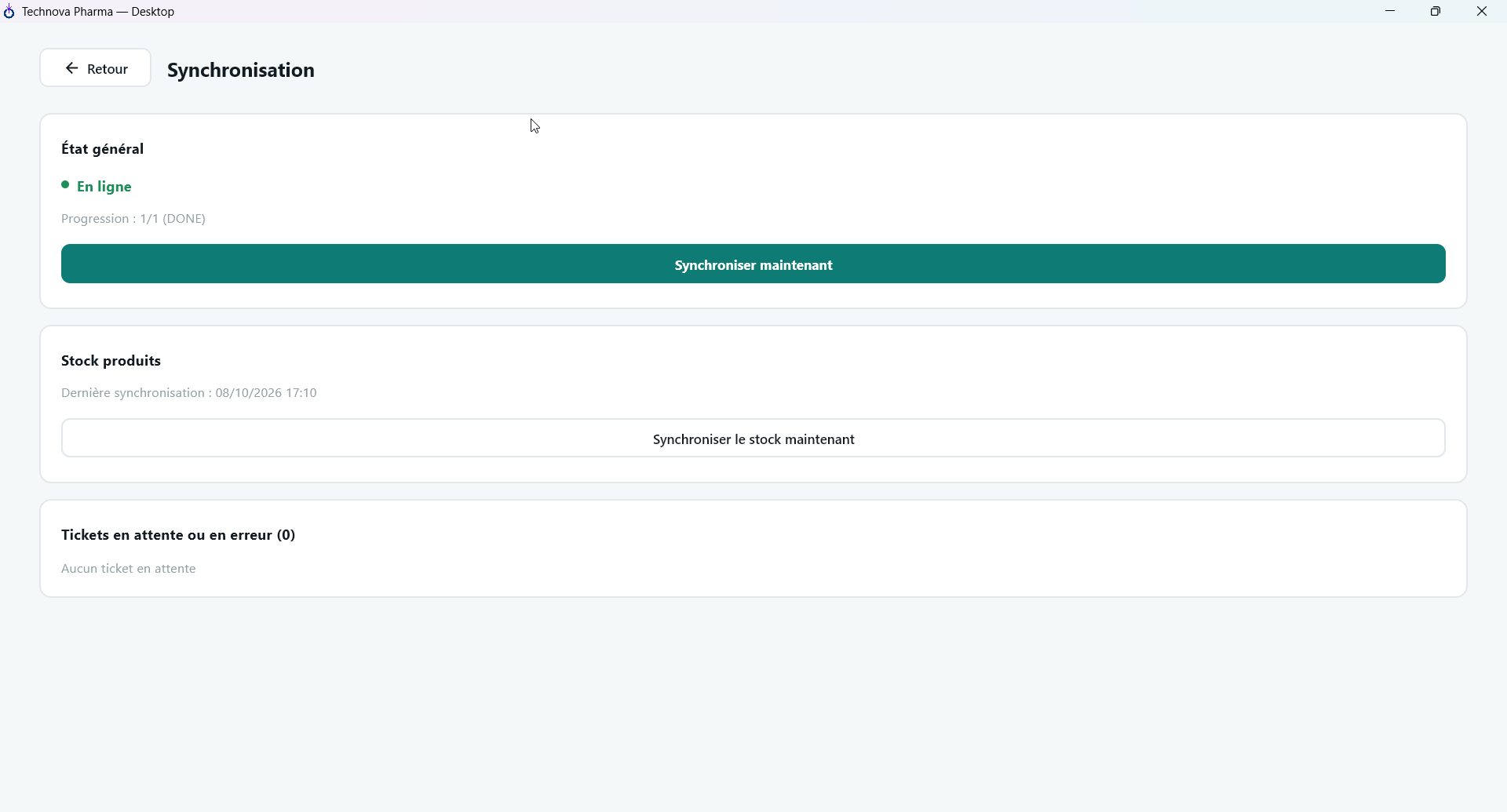
    In the app, open the "Synchronisation" screen: it shows the state ("En ligne"), the progress and the "Tickets en attente ou en erreur". To test offline mode, cut the PC's network and create a ticket: the indicator switches to "Hors ligne" and the ticket stays pending. Restore the network: synchronisation starts by itself, or click "Synchroniser maintenant". A ticket sent twice creates only one order in Technova.

    Technova Pharma Synchronisation screen: online, no pending ticket

If it does not work

  • Cannot connect over HTTP

    An http:// address is only for a local test on your own network. For the demo and in production, use an https:// address.

  • No point of sale found

    In Technova, a till configuration with at least one payment method (for example Cash) must exist in the database.

  • "Identifiant ou mot de passe incorrect"

    Check the demo login and password, and that the database entered in step 2 is the right one.

  • The server refuses the connection

    Outside a local demo, the address must start with https://: the API does not accept HTTP in production. Also check the address for typos.

  • The database is not recognised

    Enter the database name exactly as shown in the "Demo details" section above. A mistyped address or database gives a connection error.

  • Windows blocks the installation

    The installers are not digitally signed. Click "More info" then "Run anyway", after comparing the SHA-256 checksum.